How the App Works
Guide for new users
Parkko is an app for automatic parking detection and real-time parking availability. Here is how to get started and what you need to know.
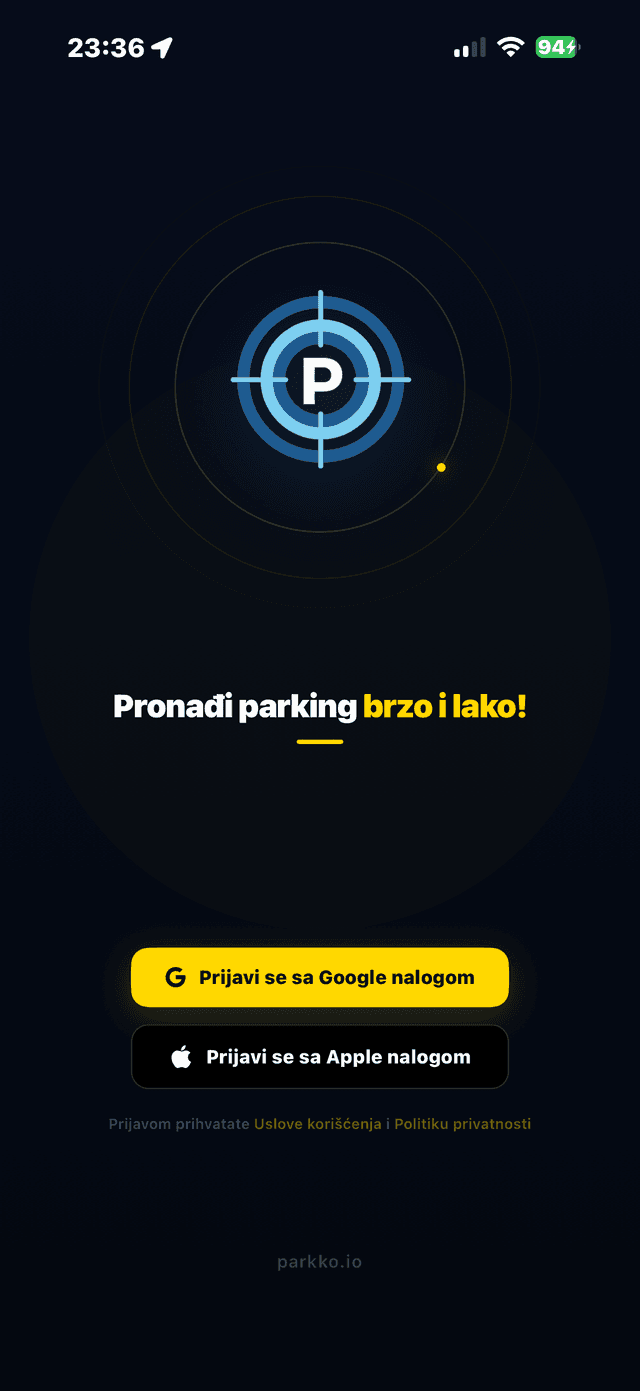
1. Sign in
Sign in with your Google or Apple account. One tap — no complicated registration, no passwords. Your email address is used as your account identifier.
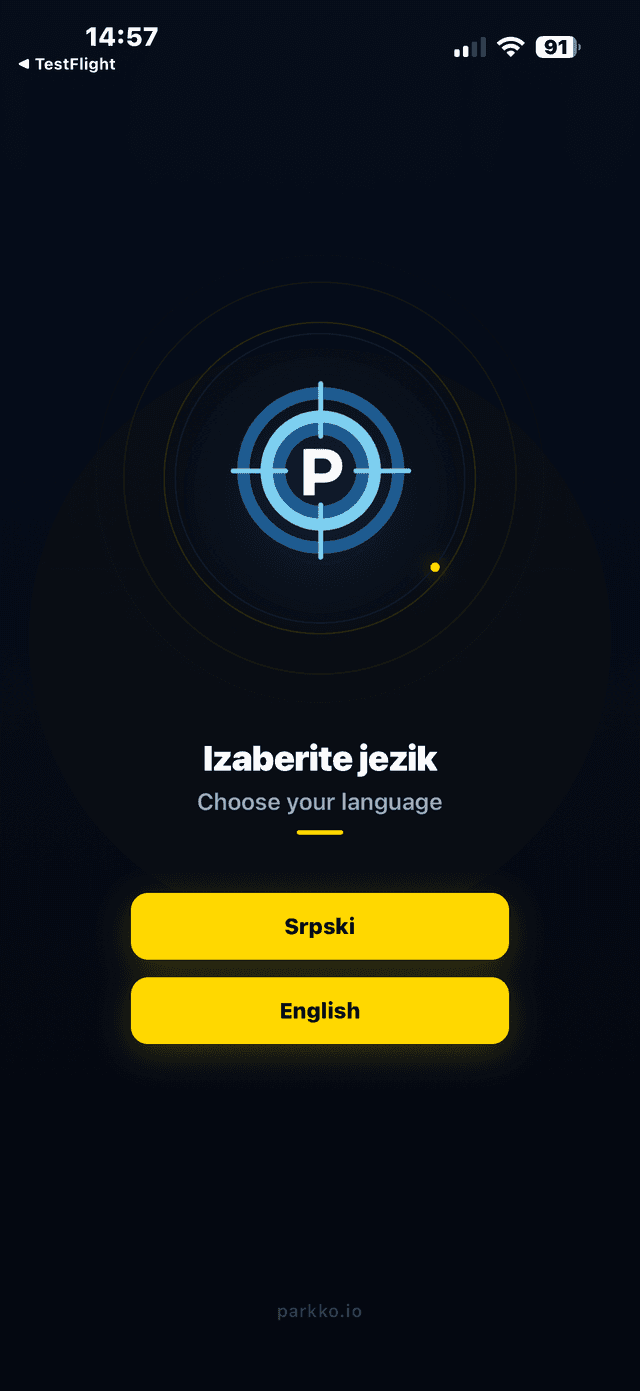
Choose your language
When you first open the app, you need to choose your language — Serbian or English. You can change this later in the app settings.
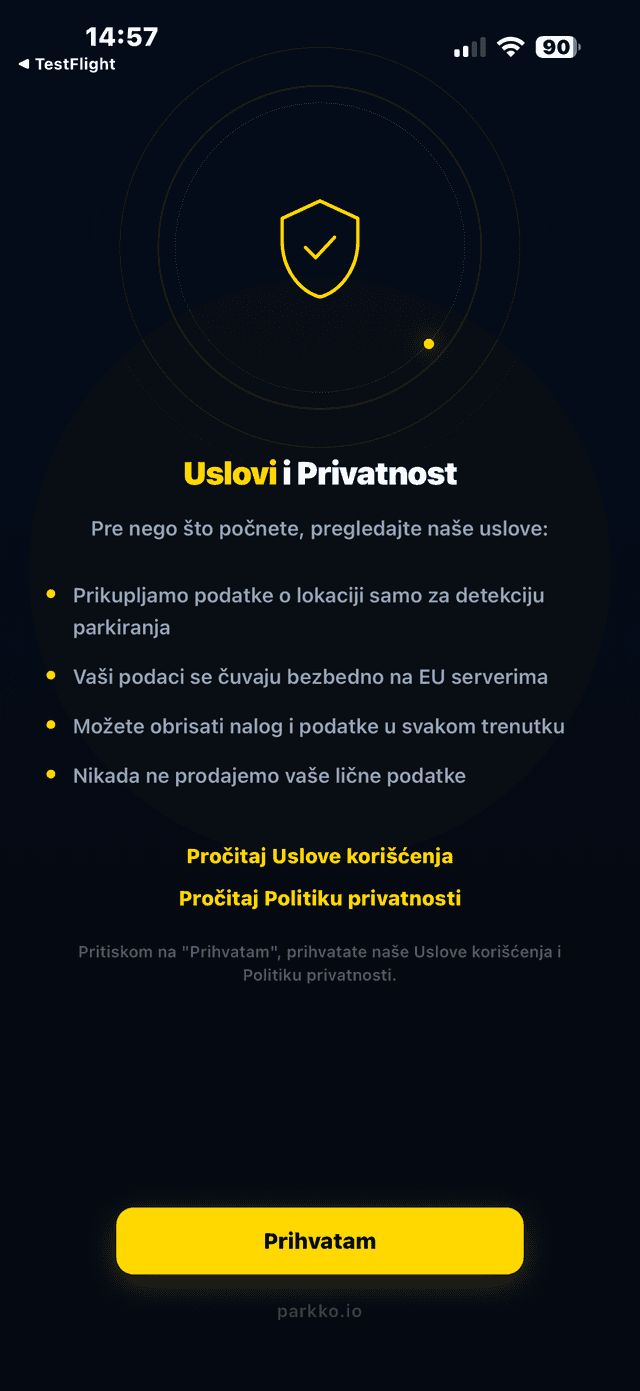
Accept the terms
Before you start using the app, you need to accept our Terms of Service and Privacy Policy. On this screen you can read a brief overview of our practices:
- We collect location data only for parking detection
- You can delete your account and data at any time
- We never sell your personal data
Tap "I Agree" to continue. You can read the full Terms of Service and Privacy Policy through the links on this screen.
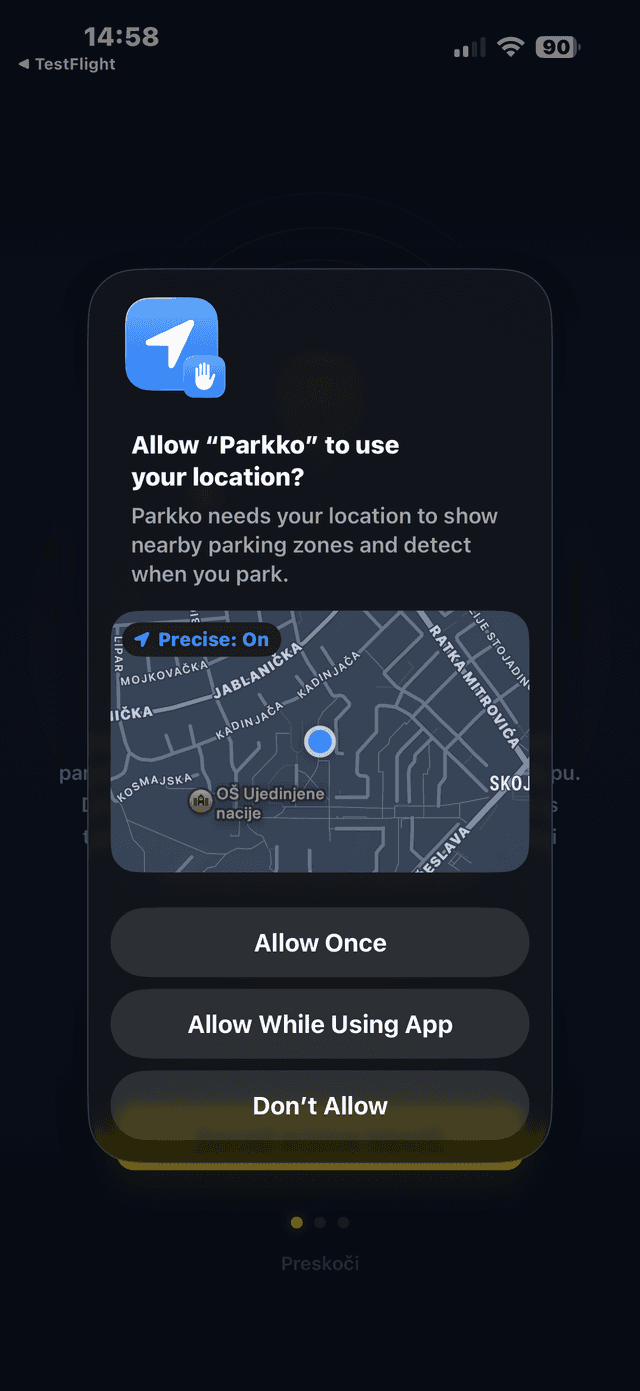
Allow location access
Parkko uses GPS to automatically detect when you park. Choose "Allow While Using App" as the minimum required. iOS will later ask you to also allow background access.
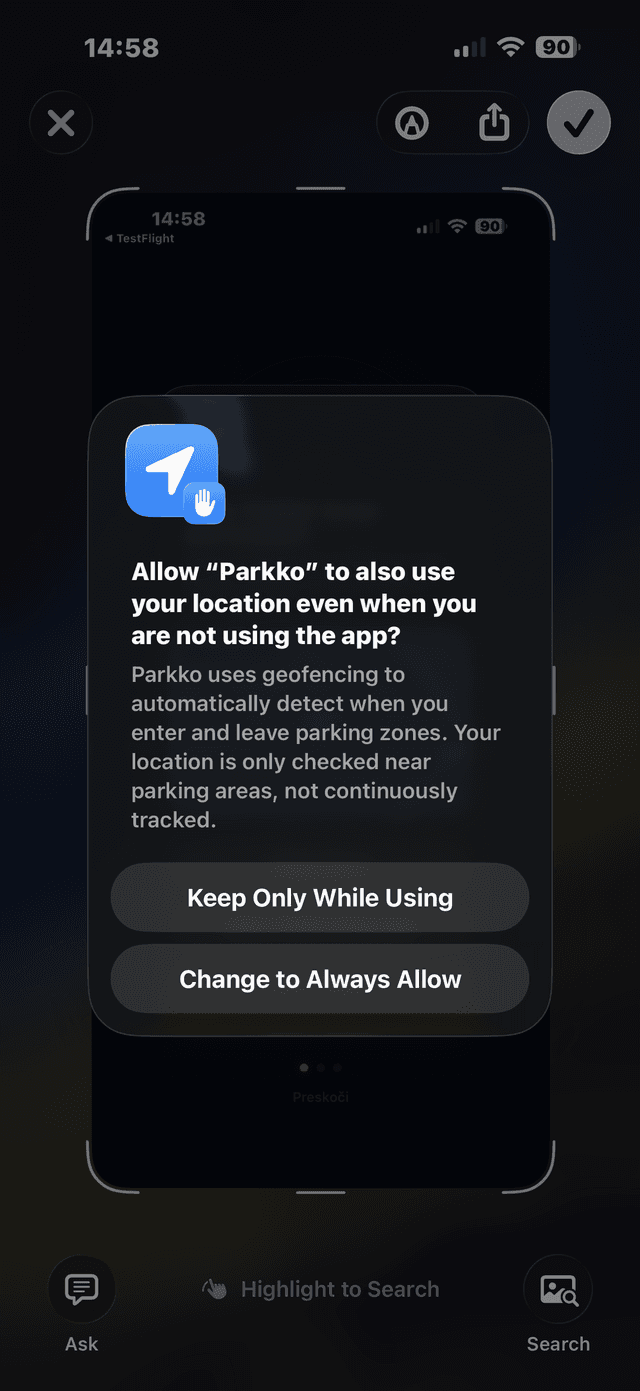
Allow background location
For full background detection (while your phone is in your pocket), choose "Change to Always Allow". Without this, the app can only detect parking while it is open. Your location is not continuously tracked — we use geofencing which triggers detection only when you enter or leave a parking zone.
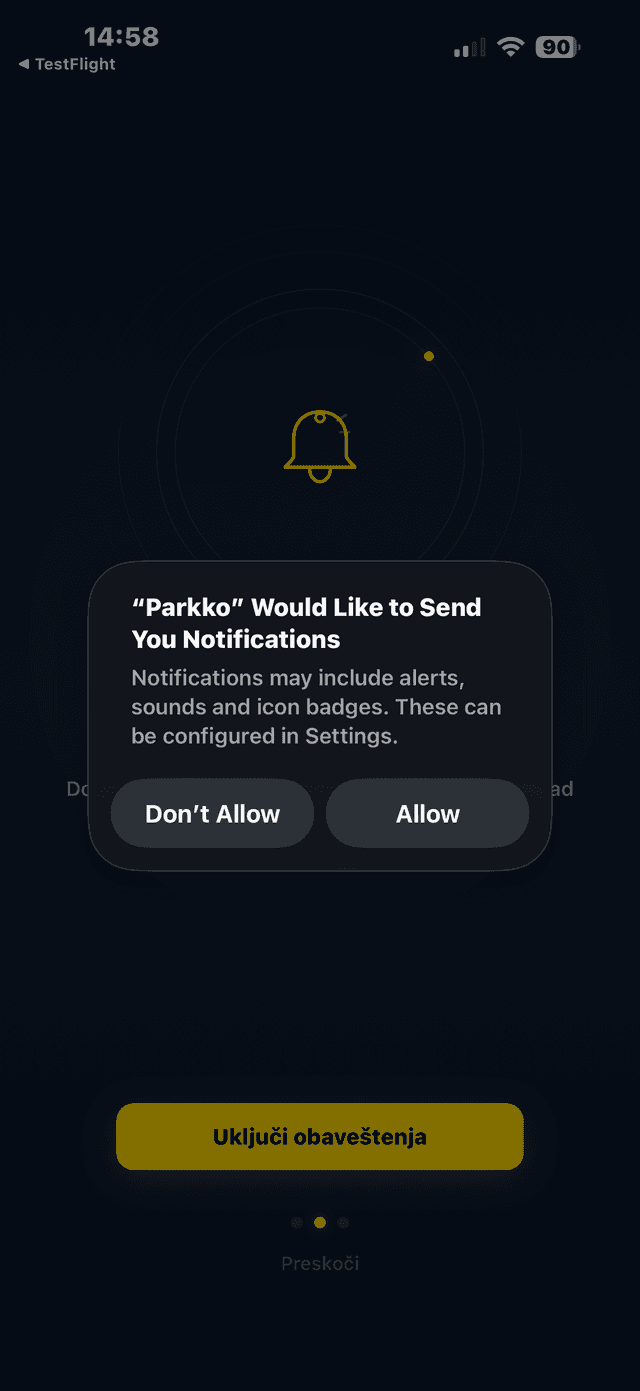
Enable notifications
Notifications let you know when you have parked or left a parking spot. We recommend enabling them so you never forget where your car is. You can skip this step, but you will not receive parking confirmations.
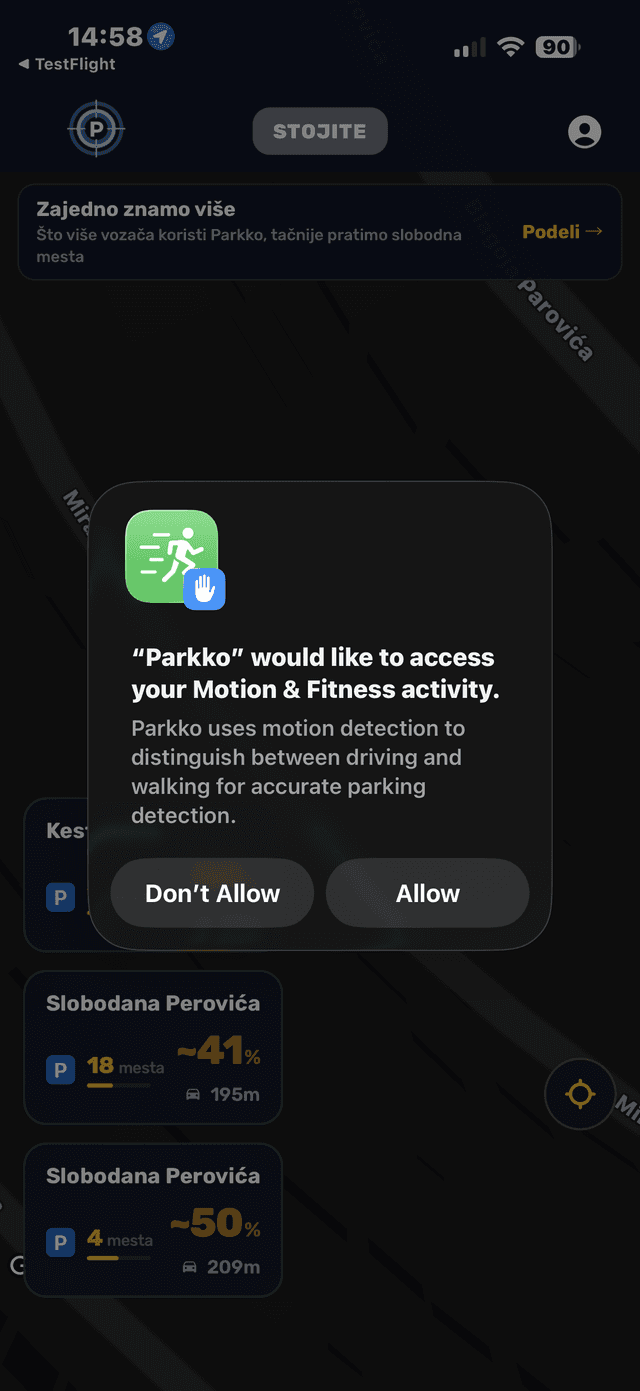
Allow motion recognition
The last step is allowing motion recognition. This enables the app to distinguish between driving, walking, and standing still — which is crucial for accurate parking detection. Without this permission, the app cannot reliably determine whether you have actually parked or are just passing through a parking zone.
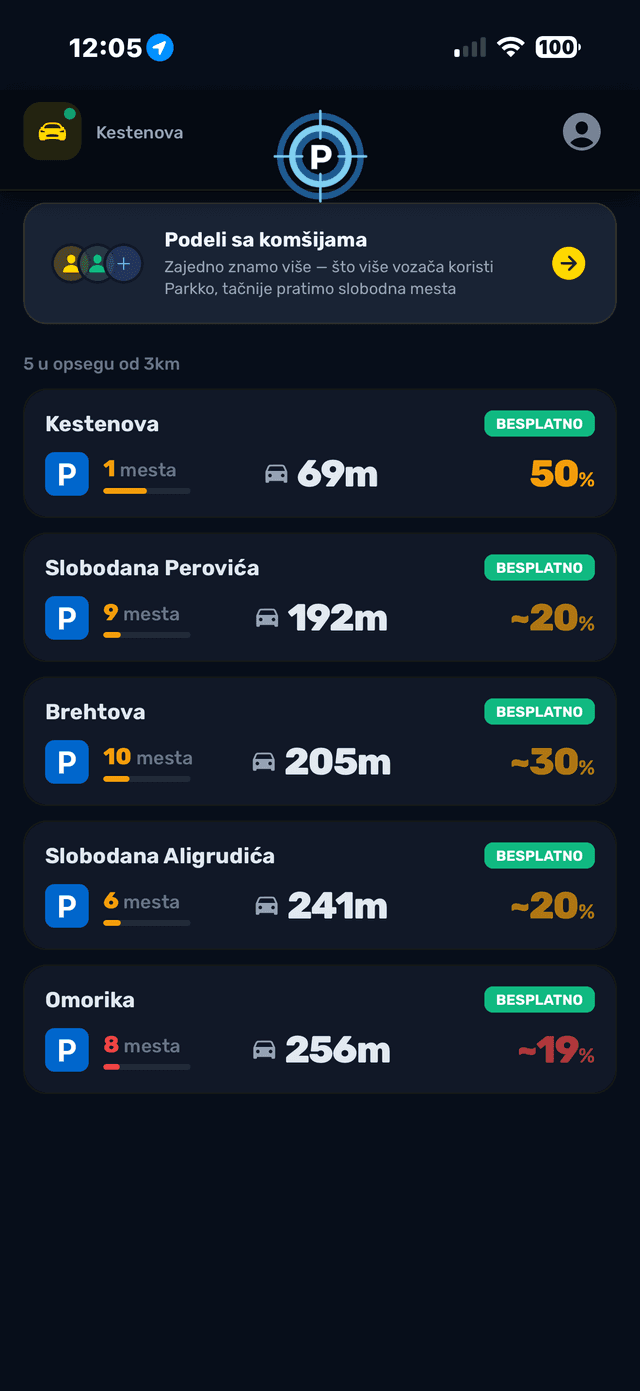
Zone overview
On the main screen you see a list of nearest parking zones sorted by distance. Each zone shows:
- Street name: where the zone is located
- Available spots: how many are currently free
- Occupancy: real-time occupancy percentage
- Distance: how far you are from the zone
- Type: free or paid
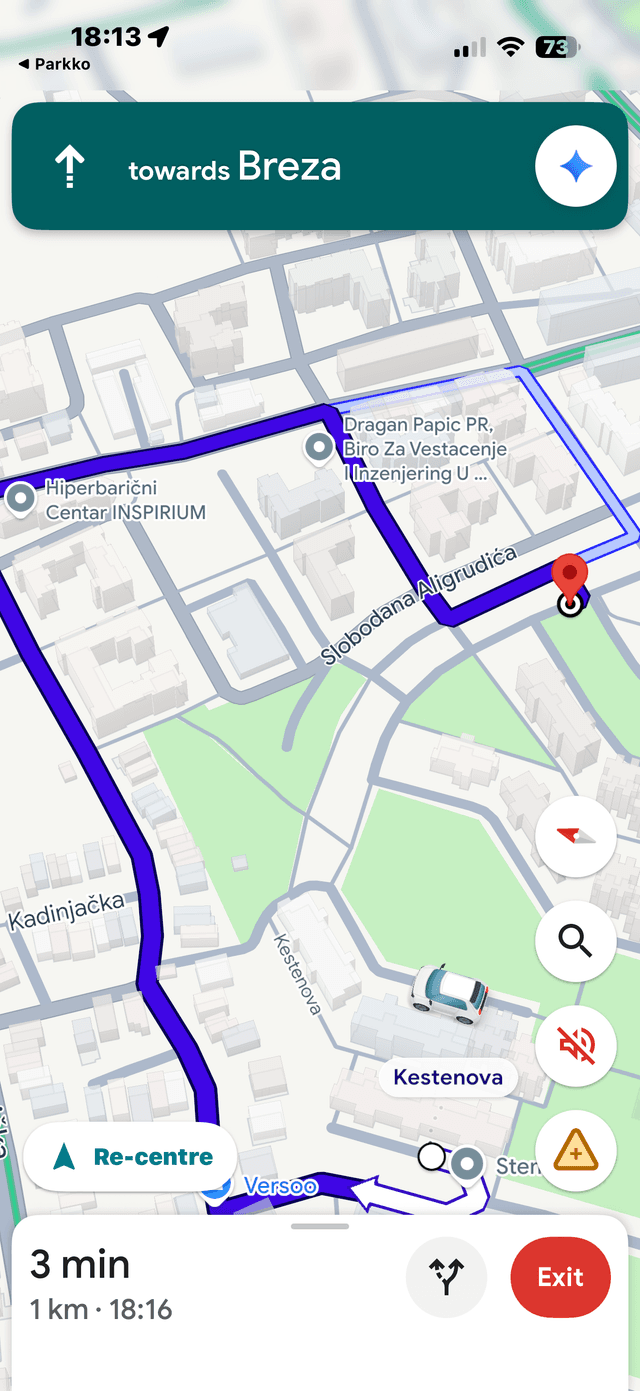
Navigate to zone
Tap any zone to start navigation. The app opens Google Maps with a route to the parking in driving mode. When parked, you can start navigation to your car in walking mode.
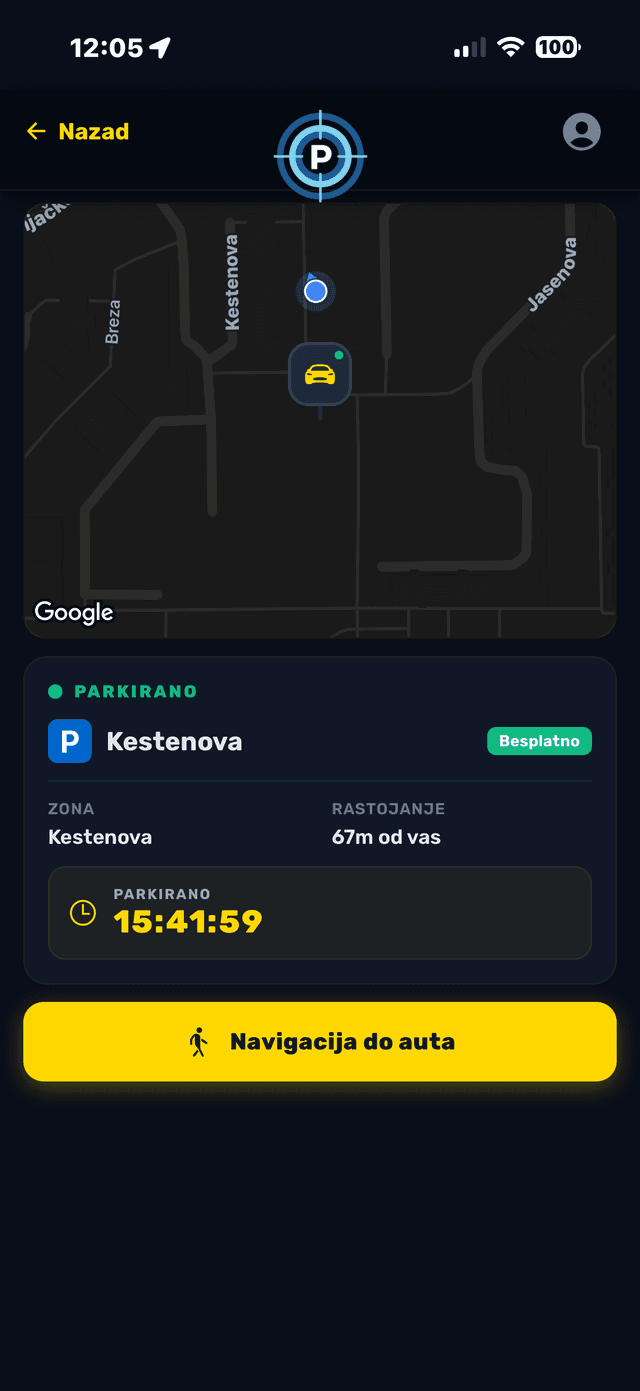
You are parked
When Parkko detects that you have parked, a map appears with two markers: a blue dot shows where you are, and a yellow car marks where your vehicle is parked. Below the map you see the zone name, distance to your car, and a timer showing how long you have been parked. Tap "Navigate to car" to open Google Maps in walking mode.
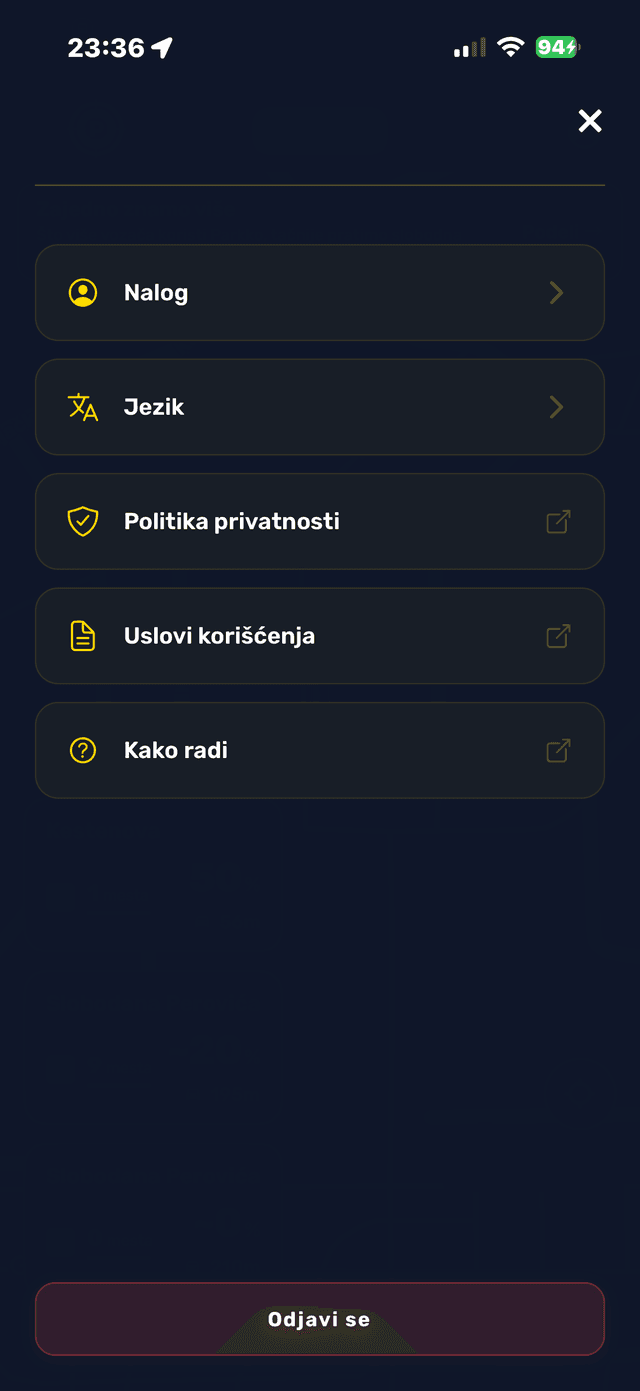
Settings
In the profile menu (icon in the top right corner) you can manage your account, change language, read the Privacy Policy and Terms of Service, or sign out.
You are ready!
After these steps, the app works completely automatically. Just drive normally — Parkko will detect when you park and when you leave, and will display real-time parking availability on the map.
Useful tips
- Keep location enabled: Without it, detection does not work
- Allow "Always Allow": For the best background detection
- Watch occupancy: Green = available, red = full, yellow = partially occupied
- Share with friends: The more drivers use Parkko, the more accurate the data
- Change language: In the profile menu you can change the language at any time